Three ways to add giving to your site
Pick the one that fits your page.
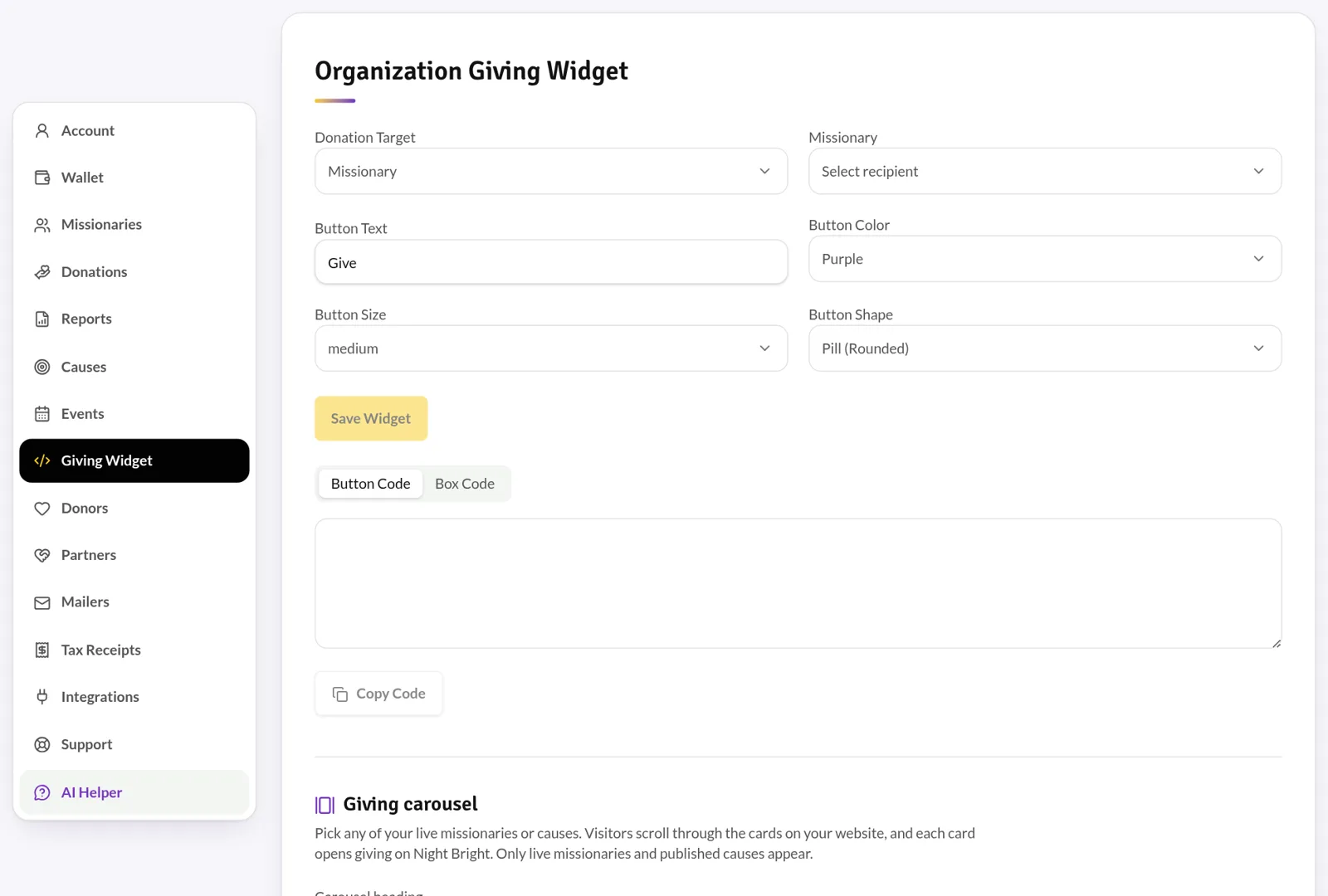
- Donation button — a purple, gold or dark "Give" button in the size and shape you choose.
- Giving box — a simple block that names the missionary or cause and links to giving.
- Giving carousel — a sideways-scrolling row of giving cards for any of your missionaries and causes, with photos, goal bars and a Give button on each card.
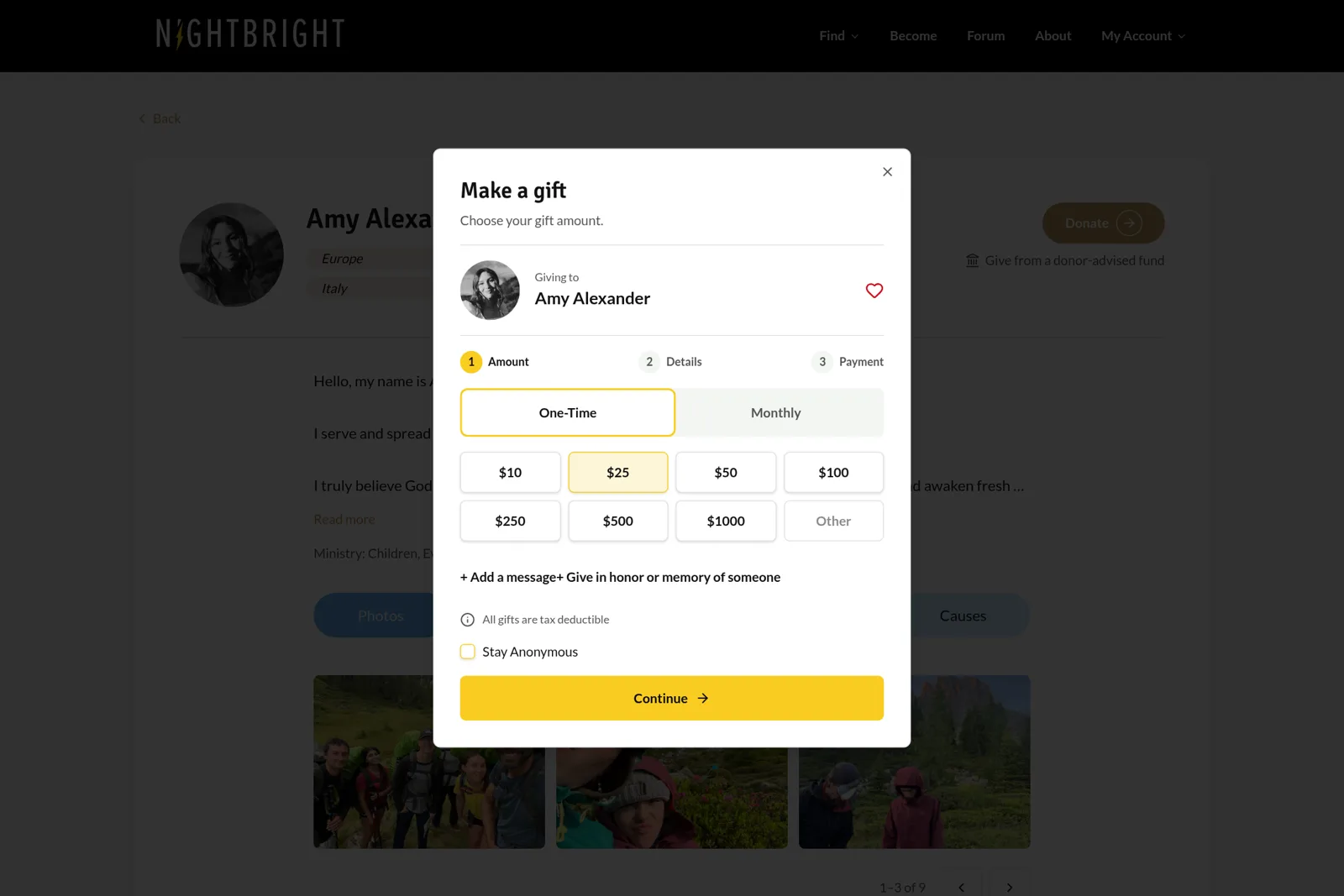
How to add a donation button to your website
1. Sign in to your missionary dashboard or organization portal. 2. Open the giving widget and pick a missionary, cause or set of cards. 3. Copy the code. 4. Paste it into an "HTML", "Code" or "Embed" block on your website and publish.
Why it beats a generic donate button
Gifts land with the right missionary or cause automatically, donors can give monthly with Apple Pay or Google Pay, and every gift shows up in your reports, receipts and integrations — no manual matching.
Common questions
Does the giving carousel work on phones?
Yes. Visitors swipe through the cards on a phone or use the arrows on a computer. Each card opens secure giving in a new tab.
What happens when I add a new missionary?
Choose your cards again and paste the new code. Only live missionaries and published causes ever appear.
Are there platform fees?
No platform fees. Donors cover the processing fee: Cards 2.2% + 30¢, American Express 3.5% + 30¢, Apple Pay and Google Pay 2.9% + 30¢, and bank (ACH) 0.8% capped at $5.
Still have questions?
Ask the Night Bright Helper about features, giving and pricing — or send your question to our team.
Ready to get started?
Night Bright is free for missionaries and organizations. Donors cover processing so 100% of every gift goes where it’s meant to.